Jun 20, 2012

How to work with Pre-processor directives for conditional execution

Recently, we had to use a lot of conditional execution of our codes.
The situation was such:
1. In a ASP.Net MVC 3 Unit test project we had to read some variables from the static application bag.

2. Even though we cud inject into and read from the Session Bag, we couldn’t find a easy way for the Application.

3. Using a Mock framework would have been the right solution, but we didn’t have the time to introduce a mocking framework into the solution.

4. From our experience of using the Pre-processor directive, “# if DEBUG” earlier, we thought of  depending on the other BUILD CONFIGURATIONS for the same effect. Such that when we run the UNIT TESTS, with a TEST Config, it should return back a fixed value instead of trying to read from the Application Bag.

5. It wasn’t easy, not much help online either, most advocated using the #define statement at the beginning of the class, which was impractical, since it would require recompile to shift between the different configurations.


Without further ado, lets step through the steps which we took to achieve this.

0. Create a Test Solution.

    • Add 2 Projects. A Windows Project and a class library.
    • The Windows App Project contains a form, with a Button and a text box.
    • The Class Library, mimics a Utility project which will lookup from Application or other Cache values and will be called from all other layers.
    • Name the Class Library Project, as Common. Add a class Factory, which has a static property, MyProperty, which returns an int. 
      • image
    • On the Button Click event of the Form call the Factory.MyProperty. Display the value in the Text box
      • image

1. Create a new Build Configuration Item for the Unit Tests.

    • Click on the Configuration Manager, from the Menu
      • image
    • From the “Active Solution Configurations” combo, Select New…
      • image 
    • Add a new Config, lets say UNITTEST, From the “Copy Settings From” combo, select appropriate config, lets select Debug
      • image
    • For Both the Projects set the Build Configuration as “UNITTEST”
      • image
    • Open the Property Page for the “Common” Project and click on the “Build” Tab
    • From the “Configurations” combo, select,  “UNITTEST”
    • In the “Conditional Compilation symbols” textbox, enter “UNITTEST”
      • image
    • Now add the conditional statement targeting the Build Configurations into the Factory Class
      • image
    • We are done. Now the breakpoint will enter the # if UNITTEST section, when when the app is run with “UNITTEST” Build Configuration. Costly exercise of writing Mocking framework averted!
    • ***Remember, the daily build must not use this configuration, while pushing the binaries to the test environments!


Apr 3, 2012

Configure Full Text Search in Sql Server 2008 R2/ Express

SQL SERVER - 2008 - Creating Full Text Catalog and Full Text Search

(Source:http://www.codeproject.com/Articles/29237/SQL-SERVER-2008-Creating-Full-Text-Catalog-and-Ful)

Full Text Index helps to perform complex queries against character data. These queries can include word or phrase searching. We can create a full-text index on a table or indexed view in a database. Only one full-text index is allowed per table or indexed view. The index can contain up to 1024 columns. Software developer Monica who helped with screenshots also informed that this feature works with RTM (Ready to Manufacture) version of SQL Server 2008 and does not work on CTP (Community Technology Preview) versions.

To create an Index, follow the steps:

  1. Create a Full-Text Catalog
  2. Create a Full-Text Index
  3. Populate the Index

1) Create a Full-Text Catalog


< !--[if gte vml 1]> <![endif]-->

Full – Text can also be created while creating a Full-Text Index in its Wizard.

2) Create a Full-Text Index

<!--[if gte vml 1]> <![endif]-->

3) Populate the Index

As the Index Is created and populated, you can write the query and use in searching records on that table which provides better performance.

For Example,

We will find the Employee Records who has “Marking “in their Job Title.

FREETEXT( ) Is predicate used to search columns containing character-based data types. It will not match the exact word, but the meaning of the words in the search condition. When FREETEXT is used, the full-text query engine internally performs the following actions on the freetext_string, assigns each term a weight, and then finds the matches.

  • Separates the string into individual words based on word boundaries (word-breaking).
  • Generates inflectional forms of the words (stemming).
  • Identifies a list of expansions or replacements for the terms based on matches in the thesaurus.

CONTAINS( ) is similar to the Freetext but with the difference that it takes one keyword to match with the records, and if we want to combine other words as well in the search then we need to provide the “and” or “or” in search else it will throw an error.

USE AdventureWorks2008
GO

SELECT BusinessEntityID, JobTitle
FROM HumanResources.Employee
WHERE FREETEXT(*, 'Marketing Assistant');

SELECT BusinessEntityID,JobTitle
FROM HumanResources.Employee
WHERE CONTAINS(JobTitle, 'Marketing OR Assistant');

SELECT BusinessEntityID,JobTitle
FROM HumanResources.Employee
WHERE CONTAINS(JobTitle, 'Marketing AND Assistant');
GO

Conclusion

Full text indexing is a great feature that solves a database problem, the searching of textual data columns for specific words and phrases in SQL Server databases. Full Text Index can be used to search words, phrases and multiple forms of word or phrase using FREETEXT() and CANTAINS() with “and” or “or” operators.

Mar 24, 2012

How to debug the ASP.Net MVC framework

http://weblogs.asp.net/gunnarpeipman/archive/2010/07/04/stepping-into-asp-net-mvc-source-code-with-visual-studio-debugger.aspx

Using Visual Studio symbols and source files makes debugging much easier. I am specially happy about ASP.NET MVC 2 source files because I develop on ASP.NET MVC 2 almost every day. You may also find other useful symbols and source files. In this posting I will show you how to get ASP.NET MVC source to your computer and how to use it.

1. Debug options

Open options dialog and make sure you have check boxes set as on following image in red boxes.

debugoptions

2. Download symbols and source

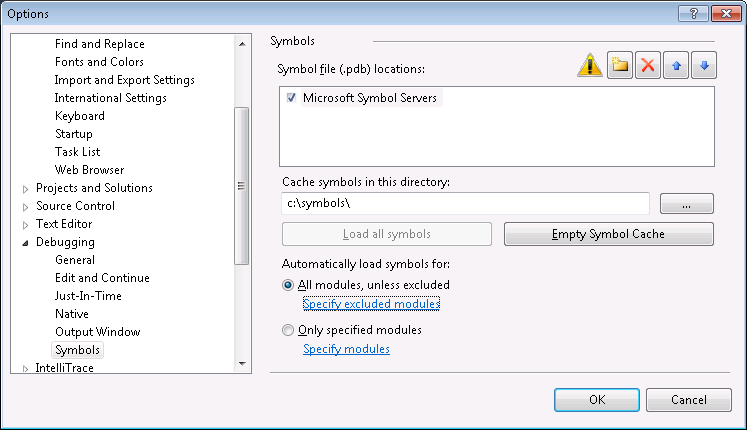
Now we have to allow downloading symbol files. By default the location of symbols is somewhere under application user data folder. I prefer some location on some drive root usually.

debugsymbols

NB! I chose “All modules, unless excluded” to get everything from symbol server. If you need only MVC symbols then choose “Only specified modules” and add System.Web.MVC there (you can also add other modules you need).

After clicking OK you see window like on following image. Make a cup of coffee and wait until symbols are downloaded. It takes a while.

downloadingpublicsymbols

3. Debugging

Open your ASP.NET MVC application, put breakpoint somewhere in code and run it. Wait until code execution hits the breakpoint.

aspnetmvcbreakpoint

When breakpoint is hit click Step-in and Step-over icons to go to some line where some method of ASP.NET MVC is called. On this method click Step-in.

4. Source code download

If ASP.NET MVC source is not there yet then you can see EULA windows like on the following image.

aspnetmvcsourceeula

If you don’t plan to do anything illegal then click Accept button. You may get some warnings about file downloads and UTF-8 encoding. Say Yes and when ASP.NET MVC source is downloaded you can see something like on the following image.

aspnetmvccontrollersource

Well, we are in View() method of controller class. Not bad at all! :)

More symbols

You can find more symbols and source files from Microsoft Reference Source Code Center. For .NET Framework you can find only symbols right now. Hopefully source is also coming soon.

Mar 4, 2012

Installing SQL Server Management Studio for Sql Server 2008 R2 Express

Step by Step Solution for Installing SSME
----------------------------------------------------------
0. If you are using Server 2008, Install Windows PowerShell using these instructions: http://www.tech-recipes.com/rx/2521/windows_server_2008_install_windows_powershell/. Otherwise download and install it from here: http://technet.microsoft.com/en-ca/scriptcenter/dd772288.aspx


1. Download and run the SSME installer from http://www.microsoft.com/downloads/details.aspx?familyid=08e52ac2-1d62-45f6-9a4a-4b76a8564a2b&displaylang=en


2. Click Installation on the left side of the the wizard.


3. Select "New SQL Server stand-alone installation or add features to an existing installation". Click OK.


4. On the Setup Support Files page, select Install.


5. On the Setup Support Rules page, click Next (the Windows Firewall warning is ok).


6. On the Installation Type page of the wizard, select "Perform a new installation of SQL Server 2008", then click Next. (I realize that this is counter-intuitive, but if you select "Add features to an existing instance of SQL Server 2008", you will be met with a greyed out pre-selected option to install the SQL Client Connectivity SDK, and you will not even see an option to install "Management Tools - Basic".) You will see that SQLEXPRESS is recognized as an installed instance.


7. The Product Key screen is all greyed out with the "Specify a free edition" selected. Click Next.


8. Agree to the License Terms as usual. Click Next.


9. On the Feature Selection page, you will FINALLY have a blank checkbox next to "Management Tools - Basic". Put a check in that box. SQL Client Connectivity SDK is selected and greyed out by default; so is the install location. Click Next.


10. Click Next on the Disk Space Requirements screen.


11. Check both boxes to send error info to Microsoft if you wish. I usually do so that they can make the product better. :-) Click Next.


12. Click Next on Installation Rules page if your system passed.


13. Click Install on the Ready to Install page.


14. Hopefully you will see a "Management Tools - Basic Success" message on the Installation Progress page of the wizard. Click Next.


15. You should see a "Your SQL Server 2008 installation completed successfully" message on the Complete page. Click Close.


Sep 13, 2010

WCF Client side Aync Calls: Using BeginXXX EndXXX calls and use the ManualResetEvent for thread marshalling

Sample code:
1. Generate the Proxy with the /async switch
e.g.: svcutil.exe /serializer:DataContractSerializer /async /out:ServiceProxy.cs, "https://www.abcd.com/ServiceHost/UserManagement.svc"

2. Instantiate the proxy client:
e.g.:
UserManagementClient userClient = null;
endPtKey = "UserManagement_WindowsEndpoint";
userClient = new PartnerContactManagementClient(endPtKey);
User[] users = null;

3. Declare and Instantiate the manualresetEvents
e.g.:
ManualResetEvent[] handles = new ManualResetEvent[2];
handles[0] = new ManualResetEvent(false);
handles[1] = new ManualResetEvent(false);

4. Use the BeginXXX / EndXXX way of invoking aync calls:
(The following example is made using anonymous methods, so that we can use the local variables.)
e.g.:
AsyncCallback contactAsyncCallback = delegate(IAsyncResult userResult)
{
try
{
users = userClient.EndLookupUser userResult);
}
catch (Exception ex)
{
exceptions.Add(ex);
}
finally
{
////Set the waithandle signal to true
handles[0].Set();
}
};

////The Begin Invoke Call
int userId = "12345";
contactClient.BeginLookupUser(userId, contactAsyncCallback, null);


5. Make the second such Async call:
e.g.:
UserRoles[] userRoles = null;

AsyncCallback roleAsyncCallback = delegate(IAsyncResult roleResult)
{
try
{
userRoles = userClient.EndLookupUserRoles(roleResult);
}
catch (Exception ex)
{
exceptions.Add(ex);
}
finally
{
////Set the waithandle signal to true
handles[1].Set();
}
};

userClient.BeginLookupUserRole(userid, accountAsyncCallback, null);

6. Wait for the Calls to return:
e.g.:
WaitHandle.WaitAll(handles);
////At this point both the reset event would join back
////Close both the handles manually
handles[0].Close();
handles[1].Close();
////Write the follow up code

Sep 3, 2010

Patterns and Practices: Microsoft Application Blocks

List of all the Microsoft Application Blocks:

1. Data Access Application Block v 2.0:
http://www.microsoft.com/downloads/details.aspx?FamilyId=F63D1F0A-9877-4A7B-88EC-0426B48DF275&displaylang=en

The Data Access Application Block encapsulates performance and resource management best practices and can easily be used as a building block in your own .NET application. If you use it, you will reduce the amount of custom code you need to create, test and maintain.
==========================================================


2. Exception Management Application Block:
http://www.microsoft.com/downloads/details.aspx?displaylang=en&FamilyID=8CA8EB6E-6F4A-43DF-ADEB-8F22CA173E02

The Exception Management Application Block provides a simple yet extensible framework for handling exceptions. With a single line of application code you can easily log exception information to the Event Log or extend it by creating your own components that log exception details to other data sources or notify operators, without affecting your application code. The Exception Management Application Block can easily be used as a building block in your own .NET application.
=======================================================


3. Authorization and Profile Application Block :
http://www.microsoft.com/downloads/details.aspx?familyid=ba983ad5-e74f-4be9-b146-9d2d2c6f8e81&displaylang=en

The Authorization and Profile Application Block provides you with an infrastructure for role-based authorization and access to profile information.
===================================================


4. Aggregation Application Block:
http://microsoft.com/downloads/details.aspx?FamilyId=9058F345-E5FE-42FC-B40B-14EBDD182F48&displaylang=en

The Aggregation Application Block is a .NET Framework extension that allows you to easily manage and coalesce information from various service providers and other systems and present that information to users.
======================================================


5. Asyncronous invocation application block:
http://msdn.microsoft.com/library/en-us/dnpag/html/PAIBlock.asp?frame=true
======================================================

6. Configuration Management Application Block :
http://www.microsoft.com/downloads/details.aspx?familyid=85cb1c53-8ca7-4a92-85e3-e4795bd27feb

The Configuration Management Application Block is an easy to use mechanism through which you can read and write application configuration data.
======================================================

7. Updater Application Block:
http://www.microsoft.com/downloads/details.aspx?familyid=c6c17f3a-d957-4b17-9b97-296fb4927c30

In medium to large organizations, it is common to want to keep all instances of a desktop application up to date with the latest version of executables, libraries, and other files. The Updater Application Block provides an extensible framework that companies can use to create updateable applications
======================================================

8. User Interface Processes Application Block v 2.0:
http://www.microsoft.com/downloads/details.aspx?FamilyId=98C6CC9D-88E1-4490-8BD6-78092A0F084E&displaylang=en

The User Interface Process Application Block provides a simple yet extensible framework for developing user interface processes. It is designed to abstract the control flow and state management out of the user interface layer into a user interface process layer.
=====================================================


9. Web Services Facade for legacy applications:
http://msdn.microsoft.com/library/en-us/dnpag/html/WSFacadeLegacyApp.asp?frame=true
=====================================================


10. Caching Application Block:
http://microsoft.com/downloads/details.aspx?FamilyId=B55164C9-94C8-4077-AA29-AFE4074746DE&displaylang=en

The Caching Application Block has been designed to encapsulate Microsoft's recommended best practices for caching in .NET applications
=====================================================


11. Smart Client Offline Application Block:
http://www.microsoft.com/downloads/details.aspx?FamilyId=BD864EB5-56B3-43A5-A964-6F23566DF0AB&displaylang=en

The Offline Application Block, is intended to serve as an architectural model for developers who want to add offline capabilities to their smart client applications.
=====================================================


12. Logging Application Block:
http://www.microsoft.com/downloads/details.aspx?FamilyId=24F61845-E56C-42D6-BBD5-29F0D5CD7F65&displaylang=en

This block is a reusable code component that uses the Microsoft Enterprise Instrumentation Framework (EIF) and the Microsoft .NET Framework to help you design instrumented applications.
=======================================================


13. Persistent Asynchronous Invocation Application Block :
http://microsoft.com/downloads/details.aspx?FamilyId=794EC811-B5EA-46AE-BAA4-69A3DEADD38E&displaylang=en

The Microsoft Asynchronous Invocation Application Block manages asynchronous communication between a Web client and one or more foreign service providers (FSP).
===========================================================

Other important links:
1. Microsoft Patterns and Practices Application Blocks and Enterprise Library, in ASP.Net Forums :
http://forums.asp.net/122.aspx

2. An Introduction and Overview of the Microsoft Application Blocks, in 4GuysFromRolla.com :
http://www.4guysfromrolla.com/articles/062503-1.aspx

3. Patterns and Practices in Msdn :
http://www.4guysfromrolla.com/articles/062503-1.aspx

4. Microsoft Enterprise Library 5.0 – April 2010 in Msdn:
http://msdn.microsoft.com/en-us/library/ff632023.aspx

5. Microsoft Enterprise Library 5.0 – April 2010 in Codeplex:
http://entlib.codeplex.com/
http://entlib.codeplex.com/wikipage?title=EntLib5%20Beta1

Aug 6, 2010

Configuring Your ASP.NET 2.0 Site

1. For configuration of Asp.net applications and Web sites and for Role Management: (Use the default WSAT tool)
http://www.developer.com/net/asp/article.php/3569166/Configuring-Your-ASPNET-20-Site.htm

2. For configuring the Asp.Net MVC Applicationsand for Role Management: (Use the MVC WSAT tool)
http://wsat.codeplex.com/

3. For Configuring WCF Roles:
http://weblogs.asp.net/spano/archive/2007/03/12/how-to-implement-a-wcf-authorization-manager-using-azman.aspx

Problem: Intellisense missing in Visual Studio


1. Open Tool>Options

2. Goto Text Editor>All Languages

3. In the Right Hand pane Check the "Auto List members"

4. Uncheck "Hide advanced members"

5. Check the "Parameter Information"

6. Click "OK"


You're done

Setup Web Admin Tool for Production Servers

I have been able installed WebAdminTool for Production Servers using the following steps:

Create a virtual directory ASP.NETWebAdminFiles in IIS that point to C:\WINDOWS\Microsoft.NET\Framework\v2.0.50727\ASP.NETWebAdminFiles

Open properties windows of the new virtual directory, make sure that it is configured to run with ASP.NET 2.0, and in Security tab, uncheck Anonymous Access, check Integrated Windows Authentication.

After that, you will be able to connect to WebAdminTools using the following syntax
http://localhost/ASP.NETWebAdminFiles/default.aspx?applicationPhysicalPath=XXX&applicationUrl=/YYY
in my case, it is:
http://localhost/ASP.NETWebAdminFiles/default.aspx?applicationPhysicalPath=D:\Tasks\Libranyon\Photonyon\&applicationUrl=/Photonyon

Although I don't recommend to do it, if you want to access WebAdminTool from other computer, open WebAdminPage.cs from (C:\WINDOWS\Microsoft.NET\Framework\v2.0.50727\ASP.NETWebAdminFiles\App_Code) and comment the following code block
if (!application.Context.Request.IsLocal) {
SecurityException securityException = new SecurityException((string)HttpContext.GetGlobalResourceObject("GlobalResources", "WebAdmin_ConfigurationIsLocalOnly"));
WebAdminPage.SetCurrentException(application.Context, securityException);
application.Server.Transfer("~/error.aspx");
}
WebAdminTool still be protected by Intergrated Windows Authentication, so you still some have some defense here.

Jun 12, 2009

How to run a C# application as an administrator

To have your C# (or any .NET program) run as Administrator in Windows, you'll have to create a manifest for it.
Step 1:
Add a manifest file to your app.
Solution Explorer>Rightclick>Add>"New Item">"Application Manifest File"


Step2 : Manipulate the default manifest file as follows

Just change the highlighted attribute from a"asInvoked" to "requireAdministrator"


Step 3: Make your app to use the manifest
[If Not using Visual Studio]
1. Rename it to (YourEXEName).manifest. The .NET Framework when executing the file will see the Manifest and handle its contents.
2.Embed the .manifest file into you EXE. This can be done by executing the following command line:
1.mt -manifest YourProgram.exe.manifest -outputresource:YourProgram.exe
2.If your assembly is strong named, you will be unable to embed the manifest into it as it would invalidate the strong naming.
[If using Visual Studio]
1. Dont have to do anything more...
2. Just remember to run the Visual Studio as an Administrator, for future debugging.

Jun 11, 2009

BackgroundWorker Class and usage examples

BackgroundWorker Class:
Brief Defn: Executes an operation on a separate thread(MSDN).
Detailed Defn: The BackgroundWorker class allows you to run an operation on a separate, dedicated thread. Time-consuming operations like downloads and database transactions can cause your user interface (UI) to seem as though it has stopped responding while they are running. When you want a responsive UI and you are faced with long delays associated with such operations, the BackgroundWorker class provides a convenient solution.

To execute a time-consuming operation in the background, create a BackgroundWorker and listen for events that report the progress of your operation and signal when your operation is finished. You can create the BackgroundWorker programmatically or you can drag it onto your form from the Components tab of the Toolbox. If you create the BackgroundWorker in the Windows Forms Designer, it will appear in the Component Tray, and its properties will be displayed in the Properties window.

To set up for a background operation, add an event handler for the DoWork event. Call your time-consuming operation in this event handler. To start the operation, call RunWorkerAsync. To receive notifications of progress updates, handle the ProgressChanged event. To receive a notification when the operation is completed, handle the RunWorkerCompleted event.

Note:
You must be careful not to manipulate any user-interface objects in your DoWork event handler. Instead, communicate to the user interface through the ProgressChanged and RunWorkerCompleted events.

BackgroundWorker events are not marshaled across AppDomain boundaries. Do not use a BackgroundWorker component to perform multithreaded operations in more than one AppDomain .

If your background operation requires a parameter, call RunWorkerAsync with your parameter. Inside the DoWork event handler, you can extract the parameter from the DoWorkEventArgs..::.Argument property.
---------------------------------------------------
Usage:

This class can be added both by code and also by using the toolbox
Usage 1: Simple invocation
////Declaration and Instantiation
BackgroundWorker Worker = new BackgroundWorker();

////Add the event handlers in the Constructor
public Form2()
{
InitializeComponent();
Worker.DoWork += new DoWorkEventHandler(Worker_DoWork);
Worker.RunWorkerCompleted += new RunWorkerCompletedEventHandler(Worker_RunWorkerCompleted);
}

/////The Do work method is performed in a Async/multithreaded way when the
////RunWorkerAsync method of the background worker is invoked.
////N.B.: No UI Control manipulation is permitted.
void Worker_DoWork(object sender, DoWorkEventArgs e)
{
// Do not access the form's BackgroundWorker reference directly.
// Instead, use the reference provided by the sender parameter.
BackgroundWorker bw = sender as BackgroundWorker;

// Extract the argument.
int arg = (int)e.Argument;

// Start the time-consuming operation.
e.Result = TimeConsumingOperation(bw, arg);

// If the operation was canceled by the user,
// set the DoWorkEventArgs.Cancel property to true.
if (bw.CancellationPending)
{
e.Cancel = true;
}
}

////This is the method which is automatically called when the async thread has completed its work.
private void Worker_RunWorkerCompleted(object sender, RunWorkerCompletedEventArgs e)
{
if (e.Cancelled)
{
// The user canceled the operation.
MessageBox.Show("Operation was canceled");
}
else if (e.Error != null)
{
// There was an error during the operation.
string msg = String.Format("An error occurred: {0}", e.Error.Message);
MessageBox.Show(msg);
}
else
{
// The operation completed normally.
string msg = String.Format("Result = {0}", e.Result);
MessageBox.Show(msg);
}
}

=============================================================
Usage 2: Implementing BackgroundWorker with Progress Bar
http://msdn.microsoft.com/en-us/library/waw3xexc.aspx


Jun 5, 2009

Consuming and Publishing RSS feeds

1. http://www.code101.com/Code101/DisplayArticle.aspx?cid=48
2. http://www.dotnetcurry.com/ShowArticle.aspx?ID=137&AspxAutoDetectCookieSupport=1
3. http://www.c-sharpcorner.com/UploadFile/pwright/RssFeedProject12062005000807AM/RssFeedProject.aspx
4. http://aspalliance.com/919_Awesome_ASPNET_20_RSS_ToolKit_Released.1 -- (Detailed Tutorial)
5. http://blogs.msdn.com/dmitryr/archive/2006/02/21/536552.aspx

WCF certificate authentication with IIS7

1. http://romualdas.spaces.live.com/blog/cns!DCDC5E439E70339D!1006.entry
2. http://social.technet.microsoft.com/Forums/en-US/winserversecurity/thread/3bfd8974-ac8a-4c53-ade8-e8b71713f92a
3. http://forums.iis.net/
4. http://notgartner.wordpress.com/2007/09/06/using-certificate-based-authentication-and-protection-with-windows-communication-foundation-wcf/

Creating a WSE 3.0 Enabled Web Service (Tutorial)

http://dotnetslackers.com/articles/aspnet/GettingStartedCreatingWSEEnabledWebService.aspx

IIS 7 SSL Certificate Installation

1. http://pro-studio.spaces.live.com/blog/cns!7CEDD8FA2A6B9050!746.entry
2. http://www.experts-exchange.com/Software/Server_Software/Email_Servers/Exchange/Q_23860405.html
3. http://help.godaddy.com/article/4801

N.B.: If you are going to install a certificate which has a p7b extension, then rename it to .cer before u start.

Jun 2, 2009

Create Digital Signature for your App

If your application does not have a digital signature and has uiAccess=true in its manifest, it will fail with "A referral was returned from the server."

Applications that request uiAccess=true must have a valid, trusted digital signature to execute.

Also, applications by default must reside in a trusted location on the hard drive (such as windows or program files) to receive the uiAccess privilege. They will still run if they are not in one of these locations, but they will not receive the privilege. You can disable this security feature through the local security policy mmc snap-in.

If you want to create a trusted "test" certificate to sign your application with so that you can use your application on your current machine, here's how:

NOTE: These instructions assume you have visual studio installed and are using a command prompt that has all the environment variables set to find SDK utilities such as makecert and signtool. If not, you will need to find these tools on your hard drive before running them.

***

1) Open an elevated command prompt

- Click start

- Find Cmd Shell or command prompt

- Right-click, click Run As Administrator

2) Create a trusted root certificate

- Browse to the folder that you wish to contain a copy of the certificate

- In the command shell, execute the following commands:

makecert -r -pe -n "CN=Test Certificate - For Internal Use Only" -ss PrivateCertStore testcert.cer

certmgr.exe -add testcert.cer -s -r localMachine root

3) Sign your file

- In the command shell, browse to the location of your exe

- In the command shell, type:

SignTool sign /v /s PrivateCertStore /n "Test Certificate - For Internal Use Only" /t http://timestamp.verisign.com/scripts/timestamp.dll APP.exe

Where APP.exe is your application.