Oct 5, 2012

View Switching in Asp.net MVC4: device based switching of views

The following article is excerpted  from the following links:
http://www.asp.net/mvc/tutorials/mvc-4/aspnet-mvc-4-mobile-features


What is View Switcher?

 
View Switcher is a component available as part of jQuery.Mobile.MVC NuGet package for ASP.NET MVC 4. It contains prototype helpers for jQuery Mobile in ASP.NET MVC 4. Generally when we are browsing mobile site in mobile/tablet sometimes we may want to switch to desktop view, but usually as per the browser detection technique, application always redirects to mobile page.


View Switcher gives the provision to user to switch from mobile view to desktop view and vice-versa.


We can get jQuery.Mobile.MVC package as part of our solution in 2 ways.


Using The Package Manger Console
 
Go to View Menu –> Open Package Manger Console
 
Run the following command : Install-Package jQuery.Mobile.MVC


In Solution Explorer
 
Right click on the solution explorer –> From popup menu choose “Manage Nuget Packages…”
 
It will pop up the “Manage Nuget Packages…” dialog –> choose online from left side options –> then in right side top of the window in “Search Online” textbox type “jquery mobile”.
 
From the options choose “jQuery.Mobile.MVC” –> click on install, It will popup a window to choose the projects in your solution, choose the required projects, if you have more than one project in solution .
 
It will install all the components as part of that package.


Once you install this NuGet package, it will install following components into solution.


ViewSwitcherController (~/Controllers/ViewSwitcherController.cs)
 
_ViewSwitcher.cshtml (~/Views/Shared/_ViewSwitcher.cshtml)
 
_Layout.Mobile.cshtml (~/Views/Shared/_Layout.Mobile.cshtml – jQuery Mobile based Layout)


ViewSwitcher partial view is added in _Layout.Mobile.cshtml, so that when u are in mobile page while browsing in mobile, you can switch to desktop page.


The highlighted UI is generated by _ViewSwitcher.cshtml partial view, this is the mobile page , if you click on “Desktop View” hyperlink, you will be redirected to desktop page.


Lets try to understand view switcher code and how it works, lets us understand _ViewSwitcher.cshtml,if we look at the code:


It will find out whether the request is from mobile browser & it should be a http get request,then if both conditions satisfies, it will start rendering the code inside it.
 
Now it will check whether the request is actually from mobile device are not, using “ViewContext.HttpContext.GetOverriddenBrowser().IsMobileDevice” property.
 
If the request is from mobile device, it will render the hyperlink to switch to desktop view.
 
@: Displaying mobile view @Html.ActionLink(“Desktop view”, “SwitchView”, “ViewSwitcher”, new { mobile = false, returnUrl = Request.Url.PathAndQuery }, new { rel = “external” })


This hyperlink will actually redirect the request SwitchView() action method with ViewSwitcher Controller with parameters “mobile = false” (because this link should redirect to desktop page, so mobile is false) and “returnUrl =Request.Url.PathAndQuery” (Request.Url.PathAndQuery – Gets the AbsolutePath and Query properties separated by a question mark (?))
 
When the request reaches SwitchView() action method with in ViewSwitcher Controller.
 
It will compare Request.Browser.IsMobileDevice (Gets a value indicating whether the browser is a recognized mobile device) with mobile parameter value, we are passing mobile parameter as false.
 
Request.Browser.IsMobileDevice is actually true because we are sending a request from mobile browser, mobile mobile parameter as false, so condition fails.
 
Now it set the overrides as actual mobile browser with desktop browser using SetOverriddenBrowser() method & returns to the passed URL desktop view.
 
When comparing the Request.Browser.IsMobileDevice against the mobile parameter value , if condition is true, then it will removes any overridden user agent for the current request using ClearOverriddenBrowser() method and returns to the passed URL actual view (if the request is from mobile browser it redirects to mobile view, else the request is from desktop browser it redirects to desktop view).
 
When checking “ViewContext.HttpContext.GetOverriddenBrowser().IsMobileDevice” property is false then, it will render the hyperlink to switch to mobile view:


@: Displaying desktop view @Html.ActionLink(“Mobile view”, “SwitchView”, “ViewSwitcher”, new { mobile = true, returnUrl = Request.Url.PathAndQuery }, new { rel = “external” })


This hyperlink also works in same way as explained above, but it will render link to switch to mobile view from a desktop view.


Note : ViewSwitcher component is actually using new Brower Overriding API, introduced with ASP,NET MVC 4. If you want to understand more about Brower Overriding API, read my article on Brower Overriding API here : http://theshravan.net/blog/browser-overriding-features-in-asp-net-mvc-4/


================================================================     ASP.NET MVC4 : Create a Mobile Application
 
In this post, I will show you three new functionalities brought by MVC4 for mobile websites.
 
  • The mobile Application Template 
  • The View Switcher 
  • The Display mode by Browser type 
Smartphone and tablet are able to read websites not optimized for tiny screen but if a user can jump automatically on an optimized version of the website, it’s better for everyone!


One interesting feature of this new version of the ASP.NET MVC framework 4 is the new Mobile Application template. With this template you’ll be able to develop quickly a website especially for mobile and tablet.


1 – Create a full-mobile Website


In Visual Studio, Create a new MVC4 project and select the “Mobile Application” template.


Mobile Application Template - MVC4
 
I consider that you’ve already develop a classic MVC application. If true, you will not be surprised by the generated project. It’s almost the same as a classic MVC desktop website.


So what the difference?


In the “content” folder you will find another JavaScript library: jQuery Mobile. ASP.NET MVC4 Mobile Template is based on the famous JavaScript framework for mobile application. You can learn a lot if you visit the jQuery mobile website.


Models and Controller are similar to a classic MVC Application.


In the view, you just have to add some tag to tell how jQuery mobile needs to display the page.


If we take a look at this code (Menu of the website generated by MVC4), you will probably recognize the Razor syntax. Nothing change when you want to develop Mobile Application with MVC4. You just have to use special attribute in your HTML.


Here, we declare a classic HTML list….and jQuery Mobile will transform it into an accessible list for mobile devices user.


  • Navigation

  •    
  • @Html.ActionLink("About", "About", "Home")

  •    
  • @Html.ActionLink("Contact", "Contact", "Home")

  • .


    The mobile version of ... Coding-in.net !
     
    This new template is perfect to start learning ASP.NET MVC4 mobile functionnalities and JQuery Mobile. If you already worked with MVC 3, you will see a big different between generated websites ! The MVC 4 website is simple, clean and uses jQuery. It’s a very good point to start learning !


    2 – Classic and mobile Website


    I will not describe all the new mobile features in MVC 4 in this post but there’s two another interesting features that I want to talk about and wich can interest some of you. It’s the “Display mode by Browser type” and the “View Switcher”.


    “View Switcher”


    A lot of mobile website have a special link to switch between mobile and classic view. ASP.NET MVC4 allows you to do this in … 1 click !


    This browser overriding ability allows user with mobile device to switch onto the classic version and vice versa.


    To add this functionnality to your ASP.NET MVC4 website, just open the Package Manager Console (Visual Studio > Tools > Library Package Manager) and paste this line :
     
     
                   Install-Package jQuery.Mobile.MVC


    NuGet is awesome isn’t it ? Your solution is updated and you now have a beautiful view switcher in your website !


    If we take a look at the added code, you should have a new partial View (in the Shared folder) called _ViewSwitcher.cshtml.


    @if (Request.Browser.IsMobileDevice && Request.HttpMethod == "GET")
     {
         

          @if (ViewContext.HttpContext.GetOverriddenBrowser().IsMobileDevice)
          {
              @: Displaying mobile view
               @Html.ActionLink("Desktop view", "SwitchView", "ViewSwitcher", new { mobile = false, returnUrl = Request.Url.PathAndQuery }, new { rel = "external" })
           }
         else
          {
                @: Displaying desktop view
                @Html.ActionLink("Mobile view", "SwitchView", "ViewSwitcher", new  { mobile = true, returnUrl = Request.Url.PathAndQuery }, new { rel = "external" })
          }

    }
     
    In this code we can see the new GetOverridenBrowser method which returns the request’s user agent override value, or the actual user agent string if no override has been specified.


    The view call the SwitchView action in the ViewSwitcher controller.


    public RedirectResult SwitchView(bool mobile, string returnUrl)
    {
      if (Request.Browser.IsMobileDevice == mobile)
           HttpContext.ClearOverriddenBrowser();
      else HttpContext.SetOverriddenBrowser(mobile ? BrowserOverride.Mobile : BrowserOverride.Desktop);

      return Redirect(returnUrl);
    }
     
    Here again we could take a look at some new method wich allows overriding brower agent value.


    “Display mode by Browser type”


    Okay, that is cool. You are now able to develop a full mobile website … But how to switch automatically between classic and mobile website depending on the browser type ? Thanks to MVC 4 , everything can be done easily !


    For example, if you already developped a classic website, you can easily develop the Mobile version with a new view called by the same name and with the extension .mobile.cshtml.


    If you have a Home.cshtml, create a Home.mobile.cshtml. If a user tries to acces to your website, the mobile version will be displayed.
     
    Better, you can override this feature and develop particular pages for a specific device. Thanks to the User Agent name available in the page request, you can, for example, target an iPhone, Android or WP7 user.


    In the Global.asax file, in the Application_Start method, just copy the code below.


    DisplayModes.Modes.Insert(0, new DefaultDisplayMode("Android")
    {
    ContextCondition = (context => context.Request.UserAgent.IndexOf ("Android", StringComparison.OrdinalIgnoreCase) >= 0)
    });

    DisplayModes.Modes.Insert(0, new DefaultDisplayMode("WindowsPhone")
    {
    ContextCondition = (context => context.Request.UserAgent.IndexOf ("Windows Phone OS", StringComparison.OrdinalIgnoreCase) >= 0)
    });.
     
    Here, we are saying to MVC 4 that we will add particular views (With .Android.cshtml and .WindowsPhone.cshtml) to the solution. If the user Agent is declared as an Android or Windows Phone browser, MVC4 will try to find the good view for this device. Simple and efficient !
     
     
     If you want to change the user agent without buy every mobile on the market, you could use amazing extension like User Agent Switcher (For Firefox). 
      
    Okay that’s all for today ! I hope you will enjoy as me these new functionnalities.
     
    Stay tuned of Coding-in.net, I will publish some post about MVC4 !


    Oct 4, 2012

    string interning.. C# fundamentals

    We all know that string objects are immutable in C# i.e we can only create a new instance of the object we cannot alter or modify them.Let us take a quick look into the following lines of code:

    static void Main(string[] args)
    {

      string s1 = "sankarsan";

      string s2 = "sankarsan";

      if (object.ReferenceEquals(s1, s2))

       {

         Console.WriteLine("Both s1 and s2 refer to same object");

       }

      else

       {

         Console.WriteLine("s1 and s2 refer to different object");

       }

      Console.Read();

    }

    As strings are immutable s1 and s2 should be two different objects and output of the program should be "s1 and s2 refer to different object".But somehow that is not the case the output of the above code is "Both s1 and s2 refer to same object".But how can this happen? Let us also take a look into the IL code

    IL_0001: ldstr "sankarsan"

    IL_0006: stloc.0

    IL_0007: ldstr "sankarsan"

    IL_000c: stloc.1

    ldstr basically allocates memory for a string and stloc stores the reference into a variable in stack.   Now let us carefully study the documentation of the ldstr opcode in MSDN : http://msdn.microsoft.com/en-us/library/system.reflection.emit.opcodes.ldstr.aspx.

    The following lines in MSDN needs to be carefully noted:

    The Common Language Infrastructure (CLI) guarantees that the result of two ldstr instructions referring to two metadata tokens that have the same sequence of characters return precisely the same string object (a process known as "string interning").

    CLR internally maintains a hashtable like structure called intern pool which contains an entry for each unique literal string as key and the memory location of the string object as value.When a string literal is assigned to the variable CLR checks if the entry present in the intern pool,if exists it returns reference to that object otherwise creates the string object, adds to the pool and returns the reference.This is String Interning.The basic objective of this is reduce memory usage by avoiding duplication of same strings which are immutable objects.

    But this can have negative performance impact as well.This is because the additional hashtable lookups are costly and moreover all the interned strings are not unloaded from the memory till the app domain is unloaded.So they will occupy memory even if they are not used.

    We can try to off string interning by adding the following attribute to the assembly

    [assembly:CompilationRelaxations(CompilationRelaxations.NoStringInterning)]


    But it is upto the CLR as it may or may not consider this attribute.But if the native image is compiled using Ngen.exe then it considers this attribute.

    This feature of string interning is not something specific to CLR but also present languages like Java,Python etc.   ============================================================== The process of invoking string interning explicitly:     string a = new string(new char[] {'a', 'b', 'c'});   object o = String.Copy(a);

      Console.WriteLine(object.ReferenceEquals(o, a));

      String.Intern(o.ToString());

      Console.WriteLine(object.ReferenceEquals(o, String.Intern(a)));   Use String.IsInterned() to check if a string is in the intern pool string s = new string(new char[] {'x', 'y', 'z'});

      Console.WriteLine(String.IsInterned(s) ?? "not interned");

      String.Intern(s);

      Console.WriteLine(String.IsInterned(s) ?? "not interned");

      Console.WriteLine(object.ReferenceEquals(

      String.IsInterned(new string(new char[] { 'x', 'y', 'z' })), s));   ======================================================================= The above content was excerpted from the following links... http://broadcast.oreilly.com/2010/08/understanding-c-stringintern-m.html http://stackoverflow.com/questions/2506588/c-sharp-string-interning
    http://aspadvice.com/blogs/from_net_geeks_desk/archive/2008/12/25/String-Interning-in-C_2300_.aspx

    Oct 3, 2012

    Asp.Net MVC Web Api and Entity Framework issues (and the resolution)

    Recently, I was working on a test project for Asp.Net Web Api. The models were auto-generated EF models (DB first).
    The dummy database is that of a School. So the Tables/Classes are   Standard, Section, Students, Teachers
    Relationship:
    Standard: Section = 1:1
    Standard: Student = 1 : many
    So in my StandardController, I have 2 methods:
    Get – returns back all the Standards
    and
    Get(int id) – returns back the individual Standard based on the passed id

    They return back json objects which is parsed by a jquery function in a view and a html table is created based on the content.

    The calls were all reaching the Controller and then the classes were also properly fetched from the Db and returned.. but the jsnon was always erroring out..

    Even after repeated attempts there was failure in retrieving the data.

    I inspected the response object through Mozilla's firebug plugin and saw that it contained a JSON serialization exception.


    I was using a “using” block to fetch the entities thru LINQ / lambda and then populating a local variable which was returned back to the view..

    The Controller code before the change..

    public Enumerable<Standard> Get()
    {  IEnumerable Standards= null;  string connstr = SessionFactory.DBConnectionString;
     SchoolEntities context = new SchoolEntities (connection); /// the data context
      using (EntityConnection connection = new EntityConnection(connstr)) {

      using (SchoolEntities context = new SchoolEntities(connection))
      {
        context.ContextOptions.LazyLoadingEnabled = true;
        Standards = context.Standards;
      });
    }
    }

    return Standards;
    }

    I searched the net and found that the problem was in fetching and then retaining the inner collection of Students contained within each of the Standard object.

    After trying multiple ways to mitigate it, I tried one thing which worked

    I just had to remove the using section and was manually opening and closing the  data context and entity connection
    And it worked!!!

    The changed code:

    public Enumerable<Standard> Get()
    {

    IEnumerable Standards = null;

    string connstr = SessionFactory.DBConnectionString;

    EntityConnection connection = new EntityConnection(connstr);
    connection.Open(); // Open the connection
     

    SchoolEntities context = new SchoolEntities (connection); /// the data context

    Standards= context.Standards;

    connection.Close();
    return standards;

    }

    Aug 29, 2012

    IIS - running 32 bit dlls on a 64 bit machine.

    In a recent project I was faced with this situation.
    The dataAccess project (xxx.dataaccess.dll) needed to access the oracle DB for some save operations.
    We were using the default .Net Framework dll for Oracle data access (system.Data.OracleClient.dll) and not the ODP.Net one (Oracle.DataAccess.dll).
    We found that in a 64 bit machine there was no way  to connect to the 64 bit version of the dll and the calls would fail with a [BadImageFormatException.]

    To avoid this we had to compile the dataaccess project in 32 bit mode (PlatForm:Active(x86) and Configuration: Active(Release)). This would force the app to connect to the 32 bit version of the dll always.

    When the bits were dropped to the web server, following a daily build,  we found that during the first access the site was throwing up an error: Unable to find the file or assembly xxx.dataaccess... BadImageFormatException... blah blah...

    After much toil I found that in a 64 bit machine, IIS will always run in 64 bit unless specifically instructed to.

    The process for enabling it is as follows.

    Open IIS Manager>Open Application Pool> Select the app pool used for the site>right click>select "Advanced settings" > Navigate to the field "Enable 32 bit Applications" and select True from the dropdown.

    Recycle the app pool or restart the IIS.

    The site will be running fine after this..

    :)

    Aug 16, 2012

    Asp.Net Mvc App showing Directory Listing after deployment..

    Task: To set up a fresh web environment.
    Specs for the web site: Asp.net MVC 3 + EF 4.1 + MS Sync framework 2.1
    Specs for the site: Windows 2008 R2 + IIS 7.5
    Steps:
    1. Installed the Prerequisites (IIS + ASP.Net MVC 3 + EF + MS Sync Framework + Sql Server express etc..)
    2. Copied the bits from a working server and dropped to the appropriate folder.
    3. Created a Virtual Directory, inside the IIS, targeting the folder.
    4. Set up the app pool.
    5. Launched the site..

    After initial hiccups like setting up the DB account for the app pool.. and some other smaler ones regarding the web.config, I was stuck at the following...
    The website was continuously displaying the directory listing for the site and not the site itself..

    Cause:
    IIS is not using the ASP.Net Mvc dlls to render the site and instead is looking for a default webpage.

    Solution:
    1. Open Command prompt
    2. Go to C:\Windows\Microsoft.NET\Framework\ folder.
    3. Run aspnet_regiis -ir

    Jul 20, 2012

    Issues with writing to the event log from an ASP.net application

    During a recent project I faced with a problem :

    I had a form whose content needed to be saved to an Oracle DB.
    I also had a fall back code which in case of the failure of the former would write the same data to a SQL server DB as a temporary repository of the form data.

    For some reasons my code to write to a Oracle DB were not going through and neither was my code to write to a SQL server temporary table.
    Automatically I was checking the Event Log and tried to figure out what was wrong.
    I had elaborate Event Logging code all over the project to help me understand what is going on under the hood, which will help me debug. But alas, there was no new log created for the web app at all!!!
    There were no relevant entries in the Application Log as well.

    I tried concentrating on the fix to the original problem, and tried many random SQL Server  and Oracle fixes but I was unable to reach a solution. This went on throughout the day..
    After a lot of misses I finally decided to fix the Event Log issue first… (And how prophetic was it!!!)
    So I was already aware of the cause, ASP.Net runs on a lower privilege, which prevents it to write to the logs.. I had faced it earlier in a SharePoint project and had added a code to raise the privilege of the particular method which writes to the log.. Should I apply that again? I thought of digging  deeper… After a lot of scouring through the net in MSDN, StackOverflow and multiple other blogs.. I found out that everybody was suggesting a different approach.. Then I came across a MSDN kb article which gave 2 possible fixes, Firstly, to apply some registry hacks which I am sure most IT admins would not allow me to do on a prod server.. and Secondly to add the Event Logs and Event Source Names manually.. There was a third way too, that to raise the privilege of the ASP.net account to a higher one.. or to use a admin account  as the App pool account.. But then  the reason ASP.net was designed to run on a lower privilege was for some reasons.. right? Namely from stopping access to directories outside the current one or to access other resources etc.. That would be defeated.

    I liked the second approach and developed a small tool to create the Event Logs and Event Source Names from a Config file.. And lo the event logging was working for my website… So what was happening? It appears that writing a new event is a common activity which a less privileged thread can perform, but Creating Event Logs and Event Source Names is considered to be Admin tasks, which the ASP.net account is not capable of doing.

    So after the Event logging issue was sorted out I now concentrated solving the original problem.. The logs clearly showed that the Oracle connection could not be opened due to some tnsnames.ora issue, and the fall back insertion was failing because the SP name which was hardcoded in the app had an extra “_” (underscore) character..
    Moral of the story: Event Logging should be set up as early as possible.

    Jul 17, 2012

    TFS VS 2010 deployment issue: some files were just not getting deployed..

    When the daily build ran today morning and after the deployment was successfully completed, I tried testing some code that I had checked in. I got a file not found error for one of the cshtml file that wwas recently added.

    We use a Web Deployment Project, so after the daily build the web content gets pushed into the Web server.. Use (Team Build + Web deployment + Web deploy + VS 2010 framework for this.. I used Vishal Joshi’s steps to set it up.. http://vishaljoshi.blogspot.sg/2010/11/team-build-web-deployment-web-deploy-vs.html)

    Meanwhile, coming back to the problem, I checked everything.. found that it was present in the TFS, local folder, created another mapped folder and executed “Get Latest version” Command, and found that it was part of the list of files. All other files were getting properly deployed. The problem was with one cshtml file and couple of scripts. All of which were recently introduced.

    Then why wasn’t it getting pushed??? After a lot of brain racking and investigation I found the solution:

    For some reason the Build Action property of these files were getting set as “None”. After I changed them back to “Content”, they started flowing smoothly into the web server after the build.

    How to change?

    In Visual Studio, right-click on the file and go to Properties.

    Under the file's properties, make sure that Build Action is set to Content. Otherwise it won't be published via web deploy.

    image001

    Jul 3, 2012

    My tryst with the SQL Server 2008 R2 Full Text Search

    In a recent project which had a requirement of a search, I had proposed Full Text Search. Even though I had a brief knowledge of how it works through a online tutorial when I was at MS, I never had dirtied my hands in that technology. So here’s how I went about it.
    1. Install the Full text Capability.
    • - The Standard installation will not have this feature and you will have to install it over it.  Funnily, it will still show the Full text nodes in the Object explorer, giving a false sense of assurance that you have it installed already. It may even let you create a “Full Text Catalog”.
      • To make sure if you have it installed, run the following query on a new Query Window:
        SELECT FullTextServiceProperty('IsFullTextInstalled')
         
         
    • The URL to the MSDN page for the detailed capability of Full-TextSearch http://msdn.microsoft.com/en-us/library/ms142571.aspx#like
    INSTALLATION:
    CONFIGURATION:
    • There are two ways of working with Full text search:
      • Search on indexed Columns. Data types supported:
        • char
        • nchar
        • varchar
        • nvarchar
        • text
        • ntext
      • Search based on indexed documents. Extensions Supported:
        • The search uses a concept called iFilter to parse and index the text of the documents.
          By default all MS text type extensions are automatically supported like,
        • .doc
        • .txt
        • docx
        • extensions like pdf etc can be supported after installing the appropriate filters.
    Configuring Full text for Database columns:  (excerpted from Pinal Dave’s blog)
    Full Text Index helps to perform complex queries against character data. These queries can include word or phrase searching. We can create a full-text index on a table or indexed view in a database. Only one full-text index is allowed per table or indexed view. The index can contain up to 1024 columns. Software developer Monica who helped with screenshots also informed that this feature works with RTM (Ready to Manufacture) version of SQL Server 2008 and does not work on CTP (Community Technology Preview) versions.
      To create an Index, follow the steps:
      1. Create a Full-Text Catalog
      2. Create a Full-Text Index
      3. Populate the Index
      1) Create a Full-Text Catalog


      Full – Text can also be created while creating a Full-Text Index in its Wizard.
      2) Create a Full-Text Index


      3) Populate the Index


      FYI, All the above mentioned steps can also be performed using scripts instead of the wizards.
    • Querying the Full text indexed columns:
    • As the Index Is created and populated, you can write the query and use in searching records on that table which provides better performance.
      For Example,
      We will find the Employee Records who has “Marking “in their Job Title.
      FREETEXT( ) Is predicate used to search columns containing character-based data types. It will not match the exact word, but the meaning of the words in the search condition. When FREETEXT is used, the full-text query engine internally performs the following actions on the freetext_string, assigns each term a weight, and then finds the matches.
      • Separates the string into individual words based on word boundaries (word-breaking).
      • Generates inflectional forms of the words (stemming).
      • Identifies a list of expansions or replacements for the terms based on matches in the thesaurus.
      CONTAINS( ) is similar to the Freetext but with the difference that it takes one keyword to match with the records, and if we want to combine other words as well in the search then we need to provide the “and” or “or” in search else it will throw an error.
      USE AdventureWorks2008GO
      SELECT BusinessEntityID, JobTitle
      FROM HumanResources.Employee
      WHERE FREETEXT(*, 'Marketing Assistant');

      SELECT BusinessEntityID,JobTitle
      FROM HumanResources.Employee
      WHERE CONTAINS(JobTitle, 'Marketing OR Assistant');

      SELECT BusinessEntityID,JobTitle
      FROM HumanResources.Employee
      WHERE CONTAINS(JobTitle, 'Marketing AND Assistant');
      GO


      Besides the CONTAINS and FREETEXT Keywords, there are 2 more keywords which are available. They are CONTAINSTABLE and FREETEXTTABLE.
      The major difference  between these 2 and the previous 2 are that these 2 would dump the content of the search into a table, which can be queried further.
      This is mostly used to sort the fetched results by Ranking. The rank is based on a Relevancy factor associated with each row. SQL Server Free text engine decides on the relevance of the results fetched based on its internal algorithm.
      Definitions:
      CONTAINSTABLE
      http://msdn.microsoft.com/en-us/library/ms189760(v=SQL.90).aspx Returns a table of zero, one, or more rows for those columns containing character-based data types for precise or fuzzy (less precise) matches to single words and phrases, the proximity of words within a certain distance of one another, or weighted matches. CONTAINSTABLE can be referenced in the FROM clause of a SELECT statement as if it were a regular table name.
      Queries using CONTAINSTABLE specify contains-type full-text queries that return a relevance ranking value (RANK) and full-text key (KEY) for each row. The CONTAINSTABLE function uses the same search conditions as the CONTAINS predicate.
      FREETEXTTABLE
      http://msdn.microsoft.com/en-us/library/ms177652(v=SQL.90).aspxReturns a table of zero, one, or more rows for those columns containing character-based data types for values that match the meaning, but not the exact wording, of the text in the specified freetext_string. FREETEXTTABLE can be referenced in the FROM clause of a SELECT statement like a regular table name.
      Queries using FREETEXTTABLE specify freetext-type full-text queries that return a relevance ranking value (RANK) and full-text key (KEY) for each row.
       
      eg.,
      CONTAINSTABLE:
      SELECT FT_TBL.Description, FT_TBL.CategoryName, KEY_TBL.RANK
      FROM Categories AS FT_TBL
      INNER JOIN
      CONTAINSTABLE (Categories, Description, '("sweet and savory" NEAR sauces)
      OR
      ("sweet and savory" NEAR candies)' )
      AS
      KEY_TBL ON FT_TBL.CategoryID = KEY_TBL.[KEY]
      ORDER BY KEY_TBL.RANK DESC

      FREETEXTTABLE:
      SELECT KEY_TBL.RANK, FT_TBL.Description
      FROM Production.ProductDescription AS FT_TBL
      INNER JOIN
      FREETEXTTABLE(Production.ProductDescription, Description, 'perfect all-around bike')
      AS
      KEY_TBL ON FT_TBL.ProductDescriptionID = KEY_TBL.[KEY]
      ORDER BY KEY_TBL.RANK DESC

    • Other important keywords are
      • Near, which does a proximity based search, for the mentioned set of words.
      • FORMSOF : you can choose to have your CONTAINS search expanded to capture different generations of a word by using the FORMSOF term. This term accepts two arguments – INFLECTIONAL or THESAURUS. The INFLECTIONAL argument will expand the search phrase to search on all conjugations and declensions or each word in the search phrase, and the THESAURUS argument will enable a thesaurus expansion on the search phrase.
        • e.g., Select * from TableName where CONTAINS(*,'FORMSOF(INFLECTIONAL,run)')
      • Thesaurus :
        • While querying a Full text indexed column we may also choose to return back synonyms of the searched term by fetching from the thesaurus!
          • FREETEXT and FREETEXTTABLE queries use the thesaurus by default. CONTAINS and CONTAINSTABLE support an optional THESAURUS argument.
          • e.g., Select * from TableName where CONTAINS(*,'FORMSOF(THESAURUS,run)')

      • Types of Search possible through FTS:
      • Improved querying tools
        • Keywords. Document creators (or trained indexers) are asked to supply a list of words that describe the subject of the text, including synonyms of words that describe this subject. Keywords improve recall, particularly if the keyword list includes a search word that is not in the document text.
        • Field-restricted search. Some search engines enable users to limit free text searches to a particular field within a stored data record, such as "Title" or "Author."
        • Boolean queries. Searches that use Boolean operators (for example, "encyclopedia" AND "online" NOT "Encarta") can dramatically increase the precision of a free text search. The AND operator says, in effect, "Do not retrieve any document unless it contains both of these terms." The NOT operator says, in effect, "Do not retrieve any document that contains this word." If the retrieval list retrieves too few documents, the OR operator can be used to increase recall; consider, for example, "encyclopedia" AND "online" OR "Internet" NOT "Encarta". This search will retrieve documents about online encyclopedias that use the term "Internet" instead of "online." This increase in precision is very commonly counter-productive since it usually comes with a dramatic loss of recall.[5]
        • Phrase search. A phrase search matches only those documents that contain a specified phrase, such as "Wikipedia, the free encyclopedia."
        • Concept search. A search that is based on multi-word concepts, for example Compound term processing. This type of search is becoming popular in many e-Discovery solutions.
        • Concordance search. A concordance search produces an alphabetical list of all principal words that occur in a text with their immediate context.
        • Proximity search. A phrase search matches only those documents that contain two or more words that are separated by a specified number of words; a search for "Wikipedia" WITHIN2 "free" would retrieve only those documents in which the words "Wikipedia" and "free" occur within two words of each other.
        • Regular expression. A regular expression employs a complex but powerful querying syntax that can be used to specify retrieval conditions with precision.
        • Fuzzy search will search for document that match the given terms and some variation around them (using for instance edit distance to threshold the multiple variation)
        • Wildcard search. A search that substitutes one or more characters in a search query for a wildcard character such as an asterisk. For example using the asterisk in a search query "s*n" will find "sin", "son", "sun", etc. in a text.

      • The concept of Stopwords/ noisewords:
        • words (SQL Server 2005 calls them noise words, 2008 stopwords). SQL Server has a list of around 150 common words, which are ignored by the Full Text Search engine. e.g. about, after, all, also, an, and, another etc. You can view the English stopwords in SQL Server 2008 like so:
          select * from sys.fulltext_system_stopwords where language_id = 1033
          In my table there is a Question titled “What are building consents?”. If we search for “what are building consents” like so:
          SELECT [Key], [Rank], 1
          FROM CONTAINSTABLE(dbo.Question, QuestionText, '"what*" AND "are*" AND "building*" AND "consents*"', 100)

          because “are” is a stopword (and so is “what”) we won’t get any results!
          There is a workaround – to wipe the list of stop words! The problem with doing this is that the list of stop words is setup server-wide on the SQL Server itself.


      •  Why Full text Search? : Difference between a regular LIKE search and FULL-TEXT search:
        Compiled from other posts and MSDN -
        •  In general, there is a tradeoff between "precision" and and "recall". High precision means that fewer irrelevant results are presented (no false positives), while high recall means that fewer relevant results are missing (no false negatives). Using the LIKE operator gives you 100% precision with no concessions for recall. A full text search facility gives you a lot of flexibility to tune down the precision for better recall.


          Most full text search implementations use an "inverted index". This is an index where the keys are individual terms, and the associated values are sets of records that contain the term. Full text search is optimized to compute the intersection, union, etc. of these record sets, and usually provides a ranking algorithm to quantify how strongly a given record matches search keywords.


          The SQL LIKE operator can be extremely inefficient. If you apply it to an un-indexed column, a full scan will be used to find matches (just like any query on an un-indexed field). If the column is indexed, matching can be performed against index keys, but with far less efficiency than most index lookups. In the worst case, the LIKE pattern will have leading wildcards that require every index key to be examined. In contrast, many information retrieval systems can enable support for leading wildcards by pre-compiling suffix trees in selected fields.


          Other features typical of full-text search are


          •lexical analysis or tokenization—breaking a block of unstructured text into individual words, phrases, and special tokens

          •morphological analysis, or stemming—collapsing variations of a given word into one index term; for example, treating "mice" and "mouse", or "electrification" and "electric" as the same word

          •ranking—measuring the similarity of a matching record to the query string

          -----------------------------------------------------------------------------------
          FTS involves indexing the individual words within a text field in order to make searching through many records quick. Using LIKE still requires you to do a string search (linear or the like) within the field.


          -------------------------------------------------------------------------------------
          Full Text Searching (using the CONTAINS) will be faster/more efficient than using LIKE with wildcarding. Full Text Searching (FTS) includes the ability to define Full Text Indexes, which FTS can use. Dunno why you wouldn't define a FTS index if you intended to use the functionality...


          LIKE with wildcarding on the left side (IE: LIKE '%Search') can not use an index (assuming one exists for the column), guaranteeing a table scan. I haven't tested & compared, but regex has the same pitfall. To clarify, LIKE

          -------------------------------------------------------------------------------------
          FTS is more efficient, powerful (especially for Word Breakers and stemming functionalities) ... but check your requirements because sometimes DBs don't support all languages for example MSSQL doesn't support Greek (check on this page http://msdn.microsoft.com/en-us/library/ms176076(v=sql.110).aspx )


      Continued in Part 2: File based Full text Search

      Jun 28, 2012

      Odd Outlook Error

      In a recent Pet Project , I was working on an application which used the MS Office libraries, specifically the Outlook ones.

      At almost the very start of the code I was trying to run the following  :

             Microsoft.Office.Interop.Outlook.Application app = null;
           app = new Microsoft.Office.Interop.Outlook.Application();

      During runtime, the application was always throwing an exception while executing the 2nd line.

      Retrieving the COM class factory for component with CLSID {0006F03A-0000-0000-C000-000000000046} failed due to the following error: 80080005.

      After trying many options to correct it, I stumbled upon a document which dealt with some similar issues. I tried them and Lo, it worked..

      Apparently these errors were triggered because I was running Outlook and the application on different user permission levels (one of them as administrator and the other one as regular user). I changed both to Administrator (since my VS.Net link is modified to open always in admin mode) and it all started working smoothly. Serendipity!!

      N.B.: These errors only appear if I already have an Outlook 2010 instance started. If Outlook is not started, the application can run smoothly (it can start an Outlook instance by itself).

      Jun 20, 2012

      How to work with Pre-processor directives for conditional execution

      Recently, we had to use a lot of conditional execution of our codes.
      The situation was such:
      1. In a ASP.Net MVC 3 Unit test project we had to read some variables from the static application bag.

      2. Even though we cud inject into and read from the Session Bag, we couldn’t find a easy way for the Application.

      3. Using a Mock framework would have been the right solution, but we didn’t have the time to introduce a mocking framework into the solution.

      4. From our experience of using the Pre-processor directive, “# if DEBUG” earlier, we thought of  depending on the other BUILD CONFIGURATIONS for the same effect. Such that when we run the UNIT TESTS, with a TEST Config, it should return back a fixed value instead of trying to read from the Application Bag.

      5. It wasn’t easy, not much help online either, most advocated using the #define statement at the beginning of the class, which was impractical, since it would require recompile to shift between the different configurations.


      Without further ado, lets step through the steps which we took to achieve this.

      0. Create a Test Solution.

        • Add 2 Projects. A Windows Project and a class library.
        • The Windows App Project contains a form, with a Button and a text box.
        • The Class Library, mimics a Utility project which will lookup from Application or other Cache values and will be called from all other layers.
        • Name the Class Library Project, as Common. Add a class Factory, which has a static property, MyProperty, which returns an int. 
          • image
        • On the Button Click event of the Form call the Factory.MyProperty. Display the value in the Text box
          • image

      1. Create a new Build Configuration Item for the Unit Tests.

        • Click on the Configuration Manager, from the Menu
          • image
        • From the “Active Solution Configurations” combo, Select New…
          • image 
        • Add a new Config, lets say UNITTEST, From the “Copy Settings From” combo, select appropriate config, lets select Debug
          • image
        • For Both the Projects set the Build Configuration as “UNITTEST”
          • image
        • Open the Property Page for the “Common” Project and click on the “Build” Tab
        • From the “Configurations” combo, select,  “UNITTEST”
        • In the “Conditional Compilation symbols” textbox, enter “UNITTEST”
          • image
        • Now add the conditional statement targeting the Build Configurations into the Factory Class
          • image
        • We are done. Now the breakpoint will enter the # if UNITTEST section, when when the app is run with “UNITTEST” Build Configuration. Costly exercise of writing Mocking framework averted!
        • ***Remember, the daily build must not use this configuration, while pushing the binaries to the test environments!


      Apr 3, 2012

      Configure Full Text Search in Sql Server 2008 R2/ Express

      SQL SERVER - 2008 - Creating Full Text Catalog and Full Text Search

      (Source:http://www.codeproject.com/Articles/29237/SQL-SERVER-2008-Creating-Full-Text-Catalog-and-Ful)

      Full Text Index helps to perform complex queries against character data. These queries can include word or phrase searching. We can create a full-text index on a table or indexed view in a database. Only one full-text index is allowed per table or indexed view. The index can contain up to 1024 columns. Software developer Monica who helped with screenshots also informed that this feature works with RTM (Ready to Manufacture) version of SQL Server 2008 and does not work on CTP (Community Technology Preview) versions.

      To create an Index, follow the steps:

      1. Create a Full-Text Catalog
      2. Create a Full-Text Index
      3. Populate the Index

      1) Create a Full-Text Catalog


      < !--[if gte vml 1]> <![endif]-->

      Full – Text can also be created while creating a Full-Text Index in its Wizard.

      2) Create a Full-Text Index

      <!--[if gte vml 1]> <![endif]-->

      3) Populate the Index

      As the Index Is created and populated, you can write the query and use in searching records on that table which provides better performance.

      For Example,

      We will find the Employee Records who has “Marking “in their Job Title.

      FREETEXT( ) Is predicate used to search columns containing character-based data types. It will not match the exact word, but the meaning of the words in the search condition. When FREETEXT is used, the full-text query engine internally performs the following actions on the freetext_string, assigns each term a weight, and then finds the matches.

      • Separates the string into individual words based on word boundaries (word-breaking).
      • Generates inflectional forms of the words (stemming).
      • Identifies a list of expansions or replacements for the terms based on matches in the thesaurus.

      CONTAINS( ) is similar to the Freetext but with the difference that it takes one keyword to match with the records, and if we want to combine other words as well in the search then we need to provide the “and” or “or” in search else it will throw an error.

      USE AdventureWorks2008
      GO

      SELECT BusinessEntityID, JobTitle
      FROM HumanResources.Employee
      WHERE FREETEXT(*, 'Marketing Assistant');

      SELECT BusinessEntityID,JobTitle
      FROM HumanResources.Employee
      WHERE CONTAINS(JobTitle, 'Marketing OR Assistant');

      SELECT BusinessEntityID,JobTitle
      FROM HumanResources.Employee
      WHERE CONTAINS(JobTitle, 'Marketing AND Assistant');
      GO

      Conclusion

      Full text indexing is a great feature that solves a database problem, the searching of textual data columns for specific words and phrases in SQL Server databases. Full Text Index can be used to search words, phrases and multiple forms of word or phrase using FREETEXT() and CANTAINS() with “and” or “or” operators.

      Mar 24, 2012

      How to debug the ASP.Net MVC framework

      http://weblogs.asp.net/gunnarpeipman/archive/2010/07/04/stepping-into-asp-net-mvc-source-code-with-visual-studio-debugger.aspx

      Using Visual Studio symbols and source files makes debugging much easier. I am specially happy about ASP.NET MVC 2 source files because I develop on ASP.NET MVC 2 almost every day. You may also find other useful symbols and source files. In this posting I will show you how to get ASP.NET MVC source to your computer and how to use it.

      1. Debug options

      Open options dialog and make sure you have check boxes set as on following image in red boxes.

      debugoptions

      2. Download symbols and source

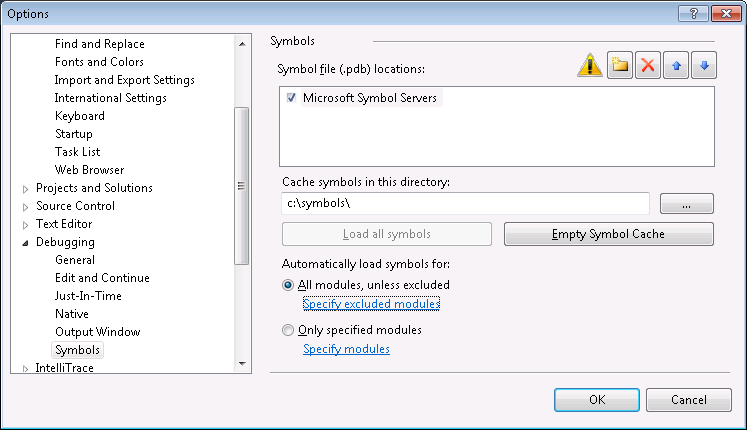
      Now we have to allow downloading symbol files. By default the location of symbols is somewhere under application user data folder. I prefer some location on some drive root usually.

      debugsymbols

      NB! I chose “All modules, unless excluded” to get everything from symbol server. If you need only MVC symbols then choose “Only specified modules” and add System.Web.MVC there (you can also add other modules you need).

      After clicking OK you see window like on following image. Make a cup of coffee and wait until symbols are downloaded. It takes a while.

      downloadingpublicsymbols

      3. Debugging

      Open your ASP.NET MVC application, put breakpoint somewhere in code and run it. Wait until code execution hits the breakpoint.

      aspnetmvcbreakpoint

      When breakpoint is hit click Step-in and Step-over icons to go to some line where some method of ASP.NET MVC is called. On this method click Step-in.

      4. Source code download

      If ASP.NET MVC source is not there yet then you can see EULA windows like on the following image.

      aspnetmvcsourceeula

      If you don’t plan to do anything illegal then click Accept button. You may get some warnings about file downloads and UTF-8 encoding. Say Yes and when ASP.NET MVC source is downloaded you can see something like on the following image.

      aspnetmvccontrollersource

      Well, we are in View() method of controller class. Not bad at all! :)

      More symbols

      You can find more symbols and source files from Microsoft Reference Source Code Center. For .NET Framework you can find only symbols right now. Hopefully source is also coming soon.

      Mar 4, 2012

      Installing SQL Server Management Studio for Sql Server 2008 R2 Express

      Step by Step Solution for Installing SSME
      ----------------------------------------------------------
      0. If you are using Server 2008, Install Windows PowerShell using these instructions: http://www.tech-recipes.com/rx/2521/windows_server_2008_install_windows_powershell/. Otherwise download and install it from here: http://technet.microsoft.com/en-ca/scriptcenter/dd772288.aspx


      1. Download and run the SSME installer from http://www.microsoft.com/downloads/details.aspx?familyid=08e52ac2-1d62-45f6-9a4a-4b76a8564a2b&displaylang=en


      2. Click Installation on the left side of the the wizard.


      3. Select "New SQL Server stand-alone installation or add features to an existing installation". Click OK.


      4. On the Setup Support Files page, select Install.


      5. On the Setup Support Rules page, click Next (the Windows Firewall warning is ok).


      6. On the Installation Type page of the wizard, select "Perform a new installation of SQL Server 2008", then click Next. (I realize that this is counter-intuitive, but if you select "Add features to an existing instance of SQL Server 2008", you will be met with a greyed out pre-selected option to install the SQL Client Connectivity SDK, and you will not even see an option to install "Management Tools - Basic".) You will see that SQLEXPRESS is recognized as an installed instance.


      7. The Product Key screen is all greyed out with the "Specify a free edition" selected. Click Next.


      8. Agree to the License Terms as usual. Click Next.


      9. On the Feature Selection page, you will FINALLY have a blank checkbox next to "Management Tools - Basic". Put a check in that box. SQL Client Connectivity SDK is selected and greyed out by default; so is the install location. Click Next.


      10. Click Next on the Disk Space Requirements screen.


      11. Check both boxes to send error info to Microsoft if you wish. I usually do so that they can make the product better. :-) Click Next.


      12. Click Next on Installation Rules page if your system passed.


      13. Click Install on the Ready to Install page.


      14. Hopefully you will see a "Management Tools - Basic Success" message on the Installation Progress page of the wizard. Click Next.


      15. You should see a "Your SQL Server 2008 installation completed successfully" message on the Complete page. Click Close.